Obsidian
2026-02-02 Note Markdown Obsidian Journal Theme Plugin Calendar Omnisearch TasksSomewhat unfortunately, I am forced to multitask a lot at work. That slowly resulted in some missed tasks, losing track of where I ended up with others, and the feeling that I am not doing much. Sometimes I also struggled with communication, because our company policy clears your emails and IM after just half a year. I thought what to do about it and decided to start a journal of my work.
I started small with a single text file in Markdown. It looked like this:
# Journal

## 2025-07-10 Thu

### Some Activity

John provided me with following files in CSV format:

- `input1.txt`
- `input2.txt`

Created a project in `d:\Gitlab\SomeActivity` and built small prototype.
Generated output file and provided it to John. His feedback was:

- The data in column 3 should be separated by comma

...

# Acronyms

*[CSV]: Comma-Separated Values
This worked for me quite nicely and provided all benefits I was looking for. It allowed me to focus on a task and make sure I had the steps and communication documented. It also gave me peace of mind, because I had a record of where I ended and what I had already tried.
About half a year later, my journal had over 250kB and 5000+ lines of text. It started to be a bit clumsy and repetitive. When I looked for alternative approaches, I run into Obsidian. The application is also built around Markdown, but works with a directory (they call it a vault) of those files. Obsidian indexes all those files, allows easy linking between them, and provides a nice search experience.
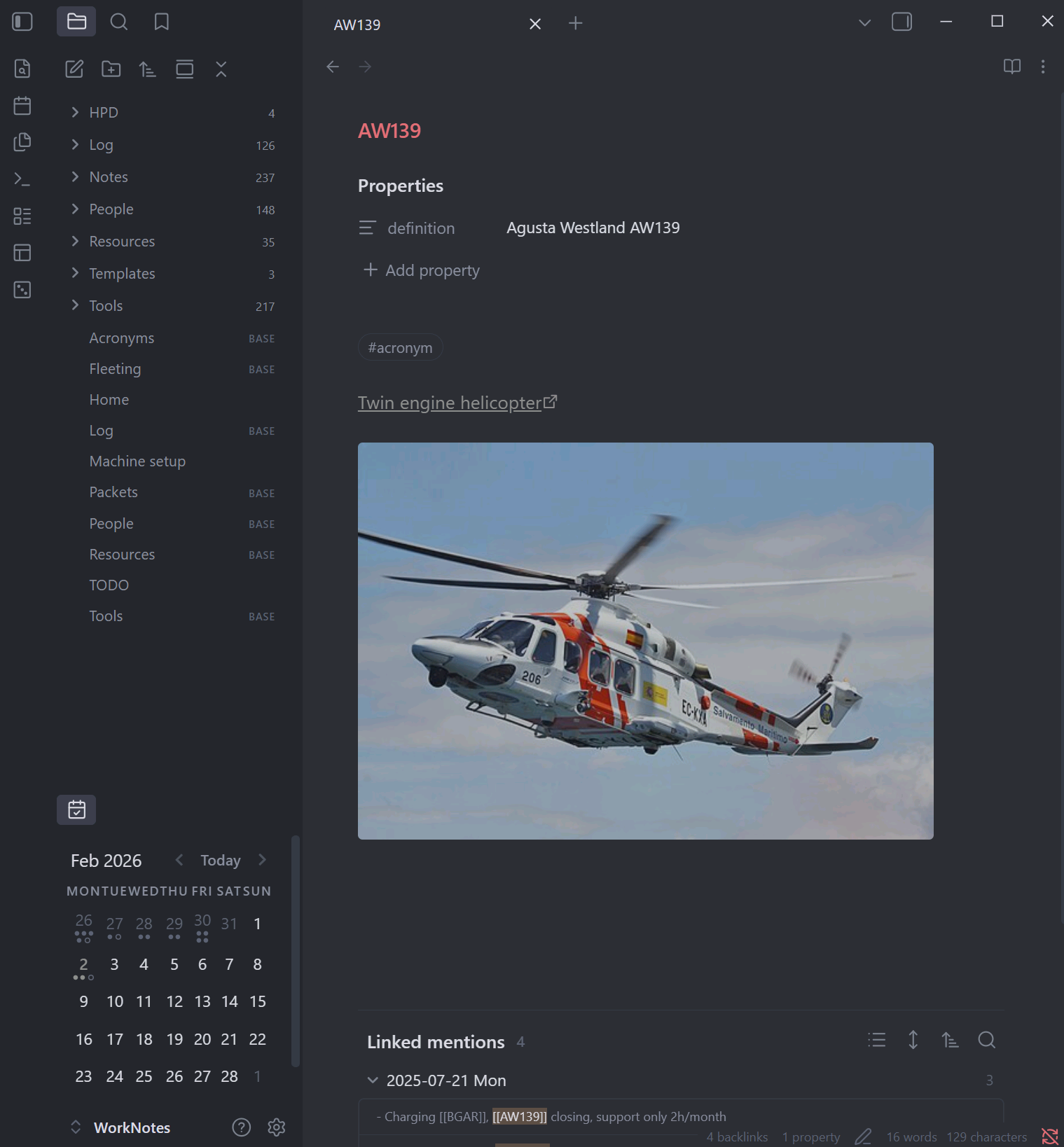
Obsidian is very configurable. Here are some things I set up for myself. The configuration is stored in the .obsidian directory inside the vault, so if you copy your vault, all settings go with you.
Keyboard
There are already defined keys for many actions — try pressing Ctrl+P. It brings up the command palette, and many commands already have a shortcut next to their description. You can also define your own in Settings/Hotkeys.
| Key | Action |
|---|---|
| Alt+ArrowLeft | app:go-back |
| Alt+ArrowRight | app:go-forward |
| Ctrl+Shift+L | app:toggle-left-sidebar |
| Ctrl+Shift+R | app:toggle-right-sidebar |
| Ctrl+Shift+D | daily-notes |
| Alt+Shift+ArrowUp | editor:add-cursor-above |
| Alt+Shift+ArrowDown | editor:add-cursor-below |
| Ctrl+. | editor:context-menu |
| Alt+1 | editor:focus-left |
| Alt+2 | editor:focus-right |
| Ctrl+Shift+[ | editor:fold-all |
| Ctrl+E | editor:insert-embed |
| Ctrl+Enter | editor:open-link-in-new-leaf |
| Alt+Z | editor:toggle-readable-line-length |
| Ctrl+U | editor:toggle-source |
| Ctrl+Shift+] | editor:unfold-all |
| Ctrl+\ | file-explorer:move-file |
| Ctrl+Shift+E | file-explorer:open |
| Ctrl+M | insert-template |
| Ctrl+O | omnisearch:show-Modal |
| None | switcher:open |
| Ctrl+Shift+W | workspace:move-to-new-window |
Themes
I use the Minimal theme. To fine-tune it, there is also a plugin called Minimal Theme Settings, which allows you to change many details. I use the Atom variation with Colorful headings.
Plugins
There are many plugins available, and I have tried only a few. I generally try to keep things simple and minimal. The main benefits were already there when I started the journal, but these plugins make the experience even better.
Calendar
A simple calendar that links to daily notes. It makes it easy to return to notes from previous days. Each day also shows an indication of how much text is in the daily note.
File Explorer Note Count
A simple plugin that shows the number of notes in each directory.
Omnisearch
Full-text search across all notes. Very useful, as normal switcher only searches note names and properties.
Various Complements
Good auto-complete. Helps with links and other text while writing.
Image Converter
One thing I noticed quite soon is that Obsidian allows you to paste an image into a note and automatically store it in your resources directory and link it from there. It is all good, but it creates .png images that are rather large and uses a boring numeric name. This plugin allows you to rename the image, convert it to different formats, and provides some other goodies.
Tasks
The last plugin helps with tasks. You can create a checkbox entry in any note and mark it as done. The plugin can then show an aggregated list of all such tasks, with grouping, filtering and other options. You just need to place a code block like this in your note:
```tasks
not done
has due date
group by due
```
This block will be automatically replaced by all tasks that are not done and have a due date, grouped by due date. See its documentation, it has plenty of options while still being very simple.
Structure
I use only top level directories and there are just a few of them:
Log- daily notes named like2025-07-10 ThuNotes- any note that does not belong to other categoryPeople- notes representing individualsResources- images, files, etcTemplates- templates for notes. Useful for meeting minutes and other regular entriesTools- projects I work on
On the top level, I also keep a few organizational notes, a home note, and bases that filter my notes according to certain criteria.
Conclusion
I have been using Obsidian for the last few months, and so far I am pretty happy with how it works. In some upcoming posts, I will also touch how I generate some notes from external sources — SharePoint, repositories, etc.